Getting started · for everyone
Welcome to CaseLoop
Installing on Mac or Windows, and your first twenty minutes
- Prepared for
- Everyone who uses CaseLoop
- Prepared by
- Eric Norman
- Reading time
- 15 min
Overview
CaseLoop runs on your own computer. Your client data is stored there and stays there — what comes down from our servers is the software itself, never your families’ records going the other way.
Before you start
- The installer — either the download link we sent you, or caseloop.co/download, which always serves the current release. CaseLoop is not on the App Store or in the Microsoft Store.
- A Mac or a Windows PC, and about 8 GB of free disk space. Most of that is the local AI model.
- The sign-in details for whichever practice system your agency uses, if you want to connect it during setup.
On Windows, expect a few security prompts
Windows is cautious about installers it has not seen many people run yet, and CaseLoop is new enough to qualify. The Windows section below shows every prompt and exactly which button to press — the publisher on those dialogs, Loop Holdings Inc, is what tells you it is the real installer.
On a Mac there is nothing of the kind: the app is notarised by Apple and simply opens.
Setup is per-computer, not per-person. If you use CaseLoop on a laptop and a desktop you will do this twice, and each machine keeps its own copy of what it syncs.
Install · Mac
Three steps.
Open the installer
Open the .dmg file from your Downloads folder. It is named CaseLoop-v2-<version>-universal.dmg — the version number changes with each release.
Drag to Applications
Drag the CaseLoop icon into your Applications folder.
Launch CaseLoop
Open CaseLoop from Applications. It opens straight away — no security prompt, nothing to click through. Our Mac builds are signed and notarised by Apple, and the notarisation ticket is stapled into the disk image itself, so the check passes even on a machine that is offline.
Install · Mac
Permissions macOS will ask for.
macOS asks for these one at a time, the first time a feature needs one. All three are optional, and you can change them later in System Settings → Privacy & Security.
| Permission | What it enables | Restart needed? |
|---|---|---|
| Microphone | Voice-to-text for session notes | No |
| Screen Recording | Context-aware suggestions while you work | Yes — quit and reopen CaseLoop |
| Accessibility | Automated form filling in your practice system | Sometimes |
Granting one
- When prompted, click Open System Settings.
- Find the category — Microphone, Screen Recording or Accessibility.
- Toggle CaseLoop on.
- Enter your Mac password or use Touch ID if asked.
Install · Windows
Your browser and Windows will both object. Here is each screen.
Nothing here means anything is wrong. Windows flags installers that have not built up a long download history yet, and CaseLoop is new enough to qualify. The publisher shown in the dialogs — Loop Holdings Inc — is what confirms you have the real installer.
Download the installer
Use the download link we sent you, or caseloop.co/download. The file is named CaseLoop-v2-Setup-<version>.exe — the version number changes with each release, so it will not match the screenshots below exactly.
Tell your browser to keep the file
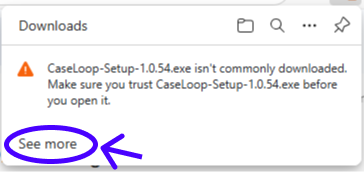
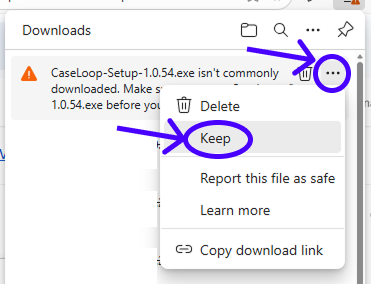
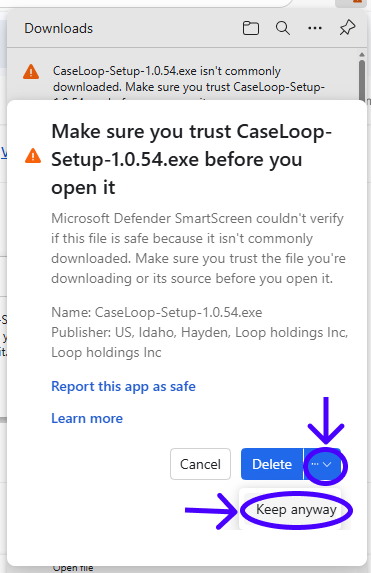
Chrome or Edge will say the file “isn’t commonly downloaded.” Click See more on that banner.
Get past Windows SmartScreen
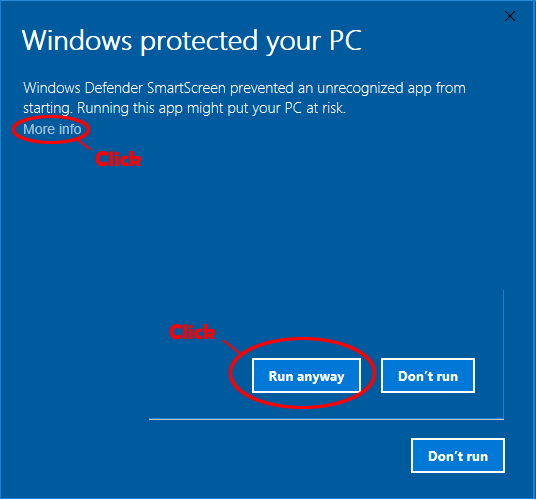
Double-click the installer. If Windows Defender SmartScreen shows “Windows protected your PC,” click More info, then Run anyway.
Let it install
There is nothing to choose. CaseLoop installs itself for your user account, creates a desktop and Start menu shortcut, and opens. No folder picker, no Next-Next-Finish.
Your account
Create one, or sign in.
Create your account
On first open, fill in first and last name, your email, and a password. A strength meter reads Weak, Fair, Good or Strong as you type — aim for Good or better. Confirm the password, tick the box agreeing to the Terms and Privacy Policy (both are links — they open the real documents), then click Create Account.
Or sign in
Already set up? Already have an account? Sign in at the bottom of the screen. If you have forgotten your password, Forgot password on the sign-in screen emails you a code and lets you set a new one.
First run
Five setup steps.
They run once, on this machine. Every one can be skipped and revisited later in Settings — skipping costs you nothing.
Permissions
“Let’s get you set up.” Two switches, both optional.
Allow CaseLoop to access other apps is accessibility access, which lets CaseLoop fill in forms in your practice system for you. Allow CaseLoop to hear you is the microphone, for voice-to-text notes.
Not sure? Skip for now is a real option — nothing later in setup depends on either.
Customize your AI
Pick the role or roles that describe you, and the features you expect to use — Voice-to-Text Notes, Smart Case Assistant, Email Drafts, Treatment Plans, Practice Analytics, Document Organization, Billing Assistance. Some are pre-selected.
This tunes what CaseLoop offers you first. It does not switch anything off, and nothing here is permanent.
Building your custom AI
The long step. Click Build My AI Assistant and CaseLoop downloads a language model and a document index that both run on your computer — which is what makes it possible for your client data never to leave it.
Expect 10–15 minutes depending on your connection, with a progress bar moving through three stages: the model, the document library, then starting the assistant. Green ticks when it is done. You can leave it running and come back.
If it fails or the assistant will not start
Click Build My AI Assistant again — a retry clears most transient failures. If it still will not start, check that antivirus or firewall software is not blocking CaseLoop’s AI engine. Settings → AI Services has the same controls plus a repair for a model that arrived damaged.
Copilot for your browser
An optional Chrome extension that puts CaseLoop in a side panel beside Gmail and Outlook, for dictating notes, filing an email to a case and drafting replies without switching windows.
Free, a separate install from the Chrome Web Store, and skipping it costs you nothing in the desktop app. Full walkthrough: CaseLoop in your browser.
Connect your EHR
Pick the practice system your agency uses — Hovi or SimplePractice — and enter that system’s login, not your CaseLoop one. Click Connect & Import Data and CaseLoop saves the credentials encrypted on this device, signs in, and imports your clients, sessions and documents with a progress bar.
Skippable. Settings → Data Integrations is the same thing with more control, and covers the other systems too — see Connect your practice systems.
The sidebar
What everything is.
The menu button at the top left opens the sidebar. This is the whole app.
| Where | What it is for |
|---|---|
| Dashboard | Your own numbers. Build a card for anything worth keeping an eye on, from any system CaseLoop has connected. |
| Reports | The reports we ship — QA Compliance, Driver Scores, Visit timesheet — and a builder for your own. See Building reports. |
| Staff | Staff records, their documents, and what is about to expire. See Staff records and expirations. |
| Referrals | The intake queue. New referrals arrive, get matched to a therapist, and get pushed to your practice system. See Working the referral queue. |
| Your mail, filed against the right family automatically. See Email, day to day. | |
| Settings | Connected systems, the local AI services, and what version this install is running. |
| In Chrome | An optional side panel beside Gmail and Outlook. See CaseLoop in your browser. |
Keeping up to date
CaseLoop updates itself. When a new version is ready an Update ready marker appears in the corner — it is not a deadline and it will not interrupt you. Click it when you are between things: it either refreshes in place or restarts the app, and the button says which.
Troubleshooting
If something doesn't look quite right.
| What you see | What to do |
|---|---|
| Mac — the app will not open, or macOS raises any objection to it. | This should not happen on a current build, so treat it as a bad download rather than something to click through: delete the .dmg and download it again from the link we sent. If a fresh copy still will not open, tell us and include your macOS version — do not work around the security check, because on a notarised app it objecting means something is genuinely wrong. |
| Mac — CaseLoop will not quit, or is stuck. | Press Cmd + Option + Esc, select CaseLoop, Force Quit. If it still seems to be running, open Activity Monitor, search for CaseLoop, node or ollama, and force-quit each one. |
| Windows — “NSIS Error” during installation. | The installer did not download fully. Delete it from Downloads and download it again, letting it finish completely before you open it. |
| Windows — the installer says CaseLoop cannot be closed, but it isn’t running. | Press Ctrl + Shift + Esc for Task Manager and end any task named CaseLoop, node.exe or llama-server.exe. Then run the installer again. If it persists, restart the computer and run the installer before opening anything else. |
| Windows — upgrading from an old version goes wrong. | Go to Settings → Apps → Installed apps, find CaseLoop and uninstall it. Then paste %LOCALAPPDATA%\caseloop-v2 into File Explorer’s address bar and delete that folder if it is still there (check %APPDATA% too). Then run the new installer. |
| The AI download sits at the same percentage for a long time. | The model is several gigabytes and the bar moves in stages, so a long pause inside one stage is normal. If it has genuinely stopped, Settings → AI Services restarts it without redoing the rest of setup. |
| “Import failed — please check your credentials.” | Check you entered your practice system login and not your CaseLoop account. Then Try again. If that system uses two-factor authentication, look for a verification prompt inside it. |
| You need a clean reinstall. | Uninstall CaseLoop, then delete the app-state folder — Mac: ~/Library/Application Support/caseloop-v2, Windows: %LOCALAPPDATA%\caseloop-v2. Your data lives separately in ~/.ollama-chroma-app; leave that alone unless you mean to start from nothing, because deleting it removes every local record. |
| You cannot find the CaseLoop folders. | They are hidden by default. Mac: in Finder, click Go, hold Option, then click Library — or Go → Go to Folder… and type the path. Windows: in File Explorer, View → Show → Hidden items. |
| Sign-in says your account or password is wrong and you are sure it isn’t. | Use Forgot password to set a new one — it emails a code. If the code never arrives, check junk, then tell us: some agency mail filters hold it. |
| The window is blank or stuck on a loading screen. | Quit and reopen. CaseLoop shows a brief offline screen at startup while it connects, and a slow first connection can leave it there longer than it should. If reopening does not fix it, tell us — do not reinstall. |
| You use two computers. | Install on both and sign in on both. Each machine syncs its own copy; there is no “main” one. |
You’re set up.
Next: connect your mailbox, which takes about two minutes — Connect your Outlook or Connect your Gmail. If you want to know exactly what is stored where before you do, read Where your data lives first.
- Questions
- eric@caseloop.co
- Tell us
- Your OS version, your CaseLoop version (in Settings), and a screenshot of any error